Create a plan manually
From Training Plans → Training Plan Templates, click Create Plan to open the three-step plan editor.Step 1: Plan Info
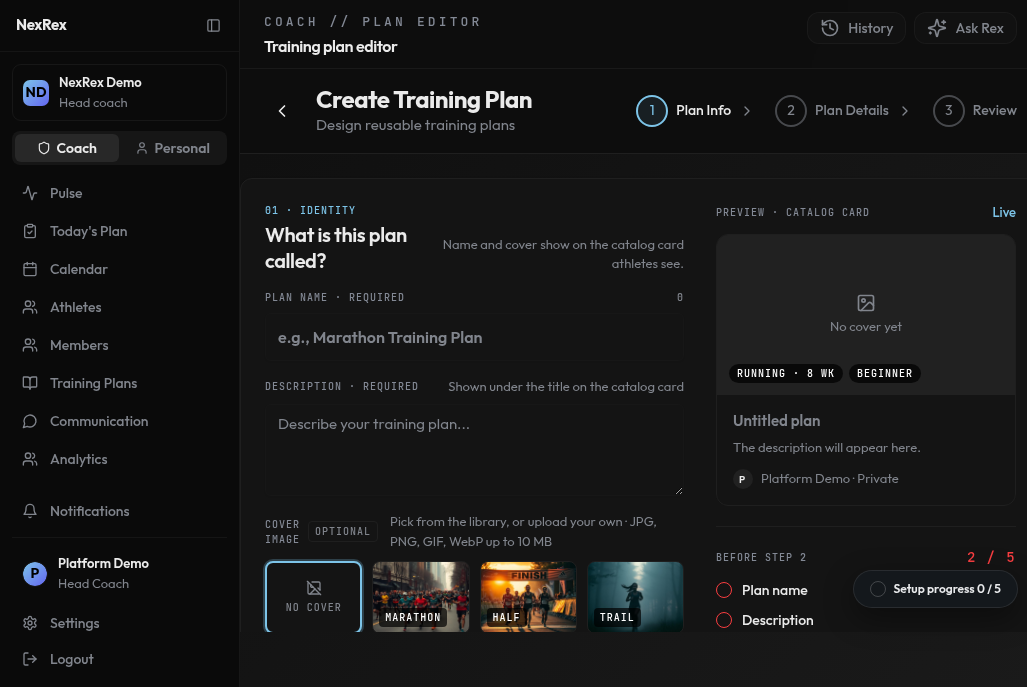
Plan Info captures identity, difficulty, duration, and visibility for the new training plan.
- Plan Name and Description — the title and summary athletes see on the plan card.
- Cover image (optional) — upload or paste a URL for the plan thumbnail.
- Training Type (Running, Cycling, Swimming, or Strength) and Difficulty Level (Beginner, Intermediate, or Advanced) — these drive workout suggestions and filtering.
- Duration (weeks) and Start Date (optional) — set a start date to display calendar dates instead of generic week numbers.
- Visibility — Private (you only), Organization (your coaching org), Public (searchable by anyone), or System (platform template).
- Plan Type — Individual or Group. A group plan prompts for one or more sub-groups (name, description, color) that become training cohorts when assigned.
Step 2: Plan Details
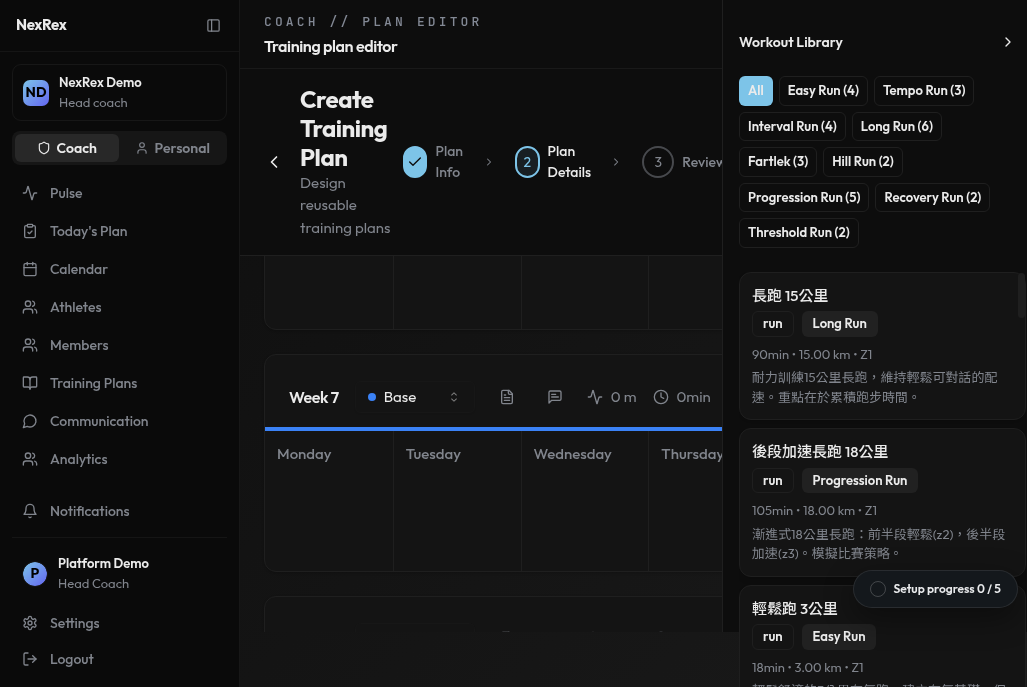
Drag workouts from your library onto the calendar or use AI Generate for a quick draft.
- Weekly Description — a markdown field for the week’s theme or focus (visible to athletes).
- Coach Reminders — logistics or notes for the week, such as a meeting point or gear reminder. Athletes see them with the week in the app.
AI shortcuts on Step 2
- AI Generate — configure target duration, athlete level, workout-source preference (AI-generated, prefer your library, or library-only), your organization’s training principles, and label emphases, then click Generate Draft. Review the result and accept or discard it. No conversational refinement — one pass.
- AI Chat — hand off to Rex’s conversational Plan Builder, carrying your progress as context. See Draft with Rex in Plan Builder below.
Step 3: Review
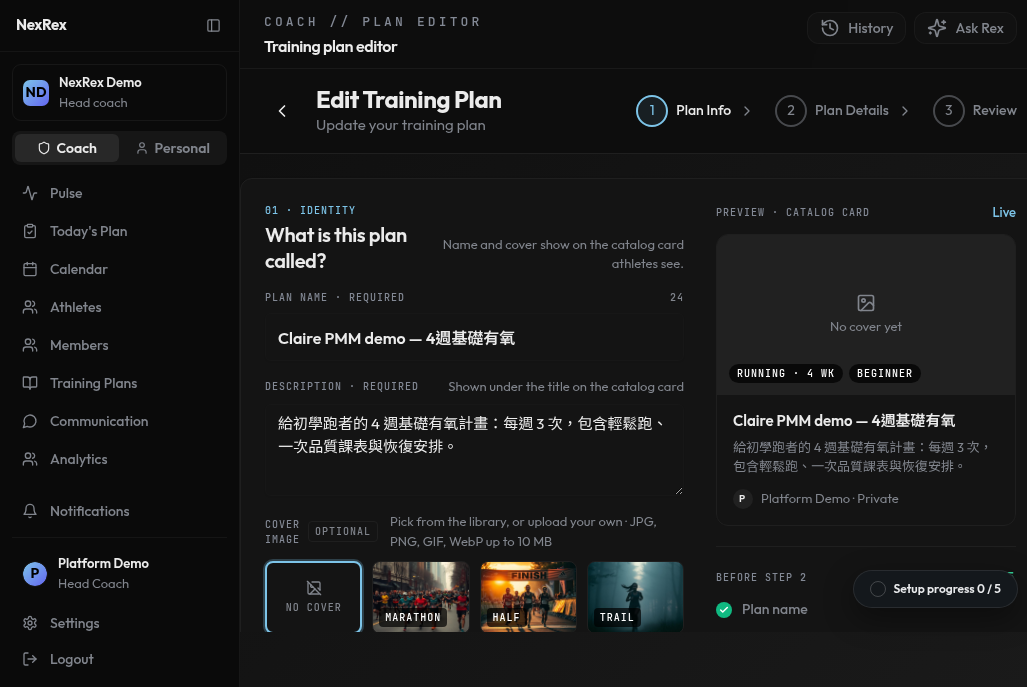
Review displays plan totals and a weekly training load chart before you save the template.
Draft with Rex in Plan Builder
Ask Rex in chat to build a plan for an athlete or a group (see Draft a plan for an athlete with Rex and Draft a group plan with Rex for how the hand-off card works). You can also click Plan Builder on an athlete’s profile, or AI Chat in the manual plan editor.Intake
Plan Builder starts with three questions: the goal race, the athlete’s finish goal, and how many days a week they train. Answer them in the chat on the left — each answer fills a slot on the right (goal race, finish goal, weekly training days) so you can see what’s still pending before Rex generates anything.The plan canvas
Once Rex has enough to work with, it generates a periodized plan and shows it as a canvas: a week-by-week, day-by-day grid alongside summary stats — total volume, number of weeks, and peak week. Every session is labeled by type (Easy, Tempo, Interval, Long run, Cross-train, Rest, Race, Test race). Refine the plan by telling Rex what to change, in plain language:- Move a session — “move the long run from Saturday to Sunday” relocates that session on the canvas.
- Rescale a week — ask Rex to rescale a week to roughly a target distance; session distances recompute proportionally across that week.
- Clear to rest — turn any session into a rest day.
- Edit a session — adjust a specific day’s detail directly; Rex confirms what changed.
- Attach a note — attach a note to a session and the athlete sees it on that session once the plan is assigned.
Save
The save step depends on who the plan is for:- For an athlete — Save as template stores it for later reuse; Save & assign stores it and immediately puts it on the athlete’s calendar.
- For a group — Save as group template is the only option. Assigning it to the group is a separate step from the saved banner’s Assign to group → link.