Attention queue
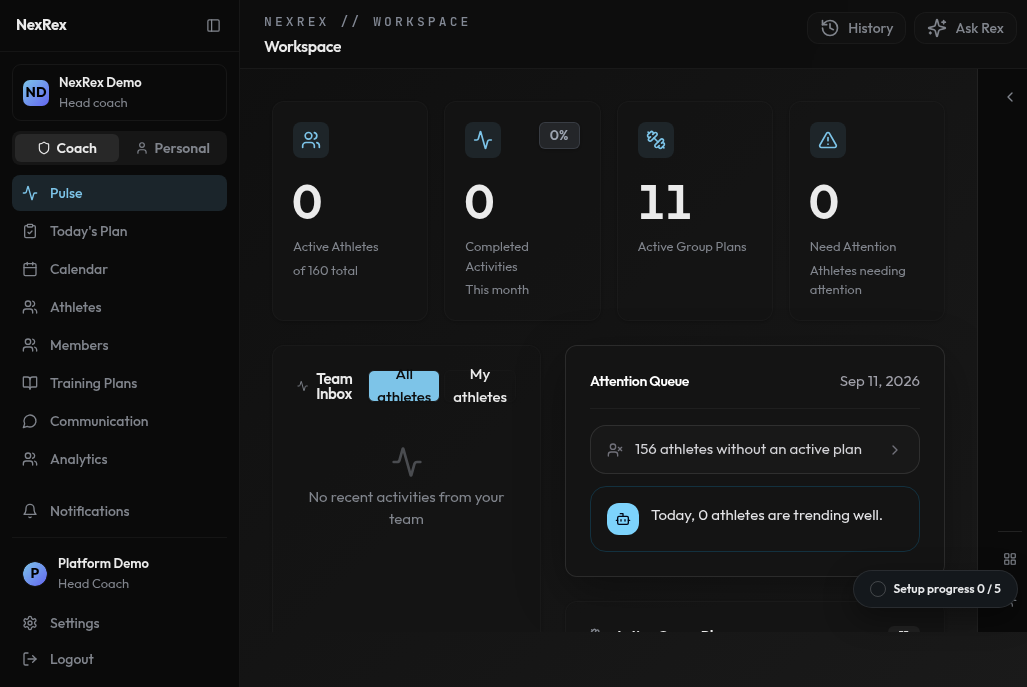
The Pulse attention queue ranks athletes by urgency — intervene now, watch this week, or trending well.
- Intervene now — athletes requiring immediate action: no active training plan, recent missed sessions, elevated injury-risk or fatigue signals, or declining recovery metrics.
- Watch this week — athletes with sharp training-load increases or other early-warning signals worth a check-in.
- Trending well — athletes ready to progress, increase intensity, or who are on track with no issues.
Coach dashboard
The dashboard your console opens to gives a roster-wide summary before you drill into any one athlete:- KPIs — Active Athletes (of your total roster), Completed Activities this month, Active Group Plans, and Need Attention (a count that links straight into the attention queue above).
- Pinned Groups — the groups you’ve pinned, with live member counts, for one-click access to the ones you check most often.
- Team Inbox — recent coaching notifications across your scope, with Mark all read and Load more. Switch scope between My athletes and All athletes if your organization has more than one coach.
Athlete profile
Opening an athlete from the roster brings up their profile, organized into tabs: Overview, Training Plan, Activities, Performance, Food journey, Recovery, and Body Composition. The Lifecycle stage card described below lives on the Overview tab.Weekly report email
Every Sunday evening, NexRex emails a weekly report to every coach in your organization — head coaches, coaches, and assistant coaches. No sign-up is needed; the report arrives automatically once you hold a coach role in an org.Roster scope
Who appears in your report depends on your role:- Head coaches receive the full active roster of the organization.
- Coaches and assistant coaches receive only the athletes assigned to them.
What’s inside
The report is a 90-second triage of your week:- Flagged athletes grouped into buckets — needs attention, going quiet, and breakthroughs — each with the trigger that flagged them (for example, an HRV drop, missed workouts, or zero runs this week).
- A full status table covering every athlete in your scope: runs, distance, 4-week compliance, trend, last activity, and the latest Rex summary.
Unsubscribe and resubscribe
Every weekly report email includes an Unsubscribe from weekly reports link in the footer. Most email clients also show a native one-click unsubscribe option at the top of the message. Either one stops the weekly report email immediately — no login required. A few things to know:- The weekly report preference is independent from the monthly recap email. Unsubscribing from one doesn’t affect the other.
- Unsubscribing only stops the email. NexRex keeps generating your report, and it stays available in the coach console and through Rex.
- To start receiving the email again, contact support@nexrex.ai.
Coach notification bell
The coach inbox header has its own bell icon with an unread badge, showing coaching notifications — athletes’ completed activities, comments on their runs, and training-plan events. It’s separate from your athlete bell on the home screen, so the two unread counts don’t bleed into each other. Tap any notification to jump straight to the relevant activity, comment, or plan. See Notification inbox for the full behavior.Comment threads on activities
Every athlete activity has a Notes & Comments thread on its Review tab. It’s the single surface where you and the athlete talk about a run — the old split between “training notes” and “comments” is gone.What you see
- Coach-visible entries (訓練心得) — anything the athlete marks as coach-visible, plus your own replies. These are the entries you can act on.
- Private notes (私人筆記) — athletes can also log entries only they can read. Those are hidden from you by design; you’ll only see the coach-visible side of the thread.
- Legacy training notes — if an athlete wrote a training note on an activity before the unified thread existed, it appears as a pinned read-only card at the top of the thread. It migrates into a regular comment the next time the athlete edits it.
Reply as a coach
Open the activity from the athlete’s feed or from a notification, scroll to the Notes & Comments thread on the Review tab, and use the composer to reply. Your replies are always visible to the athlete — coaches don’t have a private-note option. You can attach one photo, one short video (≤60s), or one voice note (≤120s) per reply — tap the + button on the composer to pick the type. Text is optional when an attachment is present, so a voice reply on its own is fine. The first voice recording prompts for microphone access. Attachments from either side render inline in the thread: photos open fullscreen on tap, videos and voice notes play in place.Existing public comments (visible to everyone in a shared context) still
render in threads that already had them, but the athlete composer now only
offers coach-visible or private. New public comments aren’t created from the
athlete app.
Review the original workout from an activity
When an athlete completes a planned session, the activity detail page shows an Original workout structure card with the coach-authored segments, preserved so you can compare the plan against the actual activity. The card includes a Review original workout button that opens the original workout in the workout editor. Both the card and the button are coach-only; athletes don’t see them.Private activities
Athletes can now mark any single activity as private from the activity’s overflow menu or the Review tab. Private activities are hidden from coach views, group feeds, followers, and the public profile, so an activity you expected to see may be missing because the athlete opted it out. The Make private / Make visible toggle is owner-only — it never appears in your view of an athlete’s activity, and there’s no coach override. If you need context on a run that isn’t visible, ask the athlete to un-hide it.Weekly check-in answers
After each weekly summary, athletes complete a short check-in with their AI coach. Each answer carries the athlete’s explicit choice of whether you may see it, and answers are private unless the athlete opts to share:- The Runner’s feedback section of the weekly summary editor shows only the answers the athlete chose to share with you.
- Answers kept private appear only as a count — for example, 2 answers kept private by the runner — never as content.
- Only shared answers feed the context of the plan-adjustment proposals you review. Private answers never reach coach-facing surfaces.
Withheld pace (“Pace not shared”)
Athletes choose who sees their pace in their privacy settings — see Privacy. When an athlete hasn’t shared pace with you, the console shows an explicit Pace not shared notice everywhere pace would normally appear, so you can tell a privacy choice apart from a watch that didn’t record pace:- Activity cards in the athlete’s activity list.
- The pace metric on the activity detail page.
- Splits, lap tables, and pace charts.
- The Planned vs. Actual comparison — the planned target still shows, the actual pace reads “Pace not shared,” and pace stays out of the deltas.
- Pace zones, which explain “This athlete has not shared pace with you.”
- Today’s Review roster rows and workout details.
Health alerts & trends
Per athlete, review training-load trends, recovery signals, and compliance against their assigned plan.Insights refresh daily. A newly added athlete may take a sync cycle before their
trends populate.
Lifecycle stage
Open an athlete’s detail sheet to see their Lifecycle stage card. It summarizes where a runner is in their training journey so you can tailor your coaching to the moment instead of treating every athlete the same.What the card shows
- Primary stage — the runner’s current phase, shown as a large label at the top of the card. One stage is active at a time. Possible stages: Onboarding, Goal Setting, Plan Calibration, Early Adaptation, Active Training, Plateau Management, Taper, Race Week, Post-Race Recovery, Post-Race Reflection, Maintenance, and Reactivation.
- Source badge — to the right of the stage label, a small badge reads Inferred when NexRex picked the stage automatically or Coach when you (or another coach on the org) have set a manual override. A coach override always takes priority over the inferred value.
- Confidence — when the stage is inferred, a percentage under the label shows how confident NexRex is in that call. Confidence is hidden for coach overrides because they’re definitive.
- Secondary states — zero or more chips below the stage describing concurrent modifiers (for example, Injury Recovery, Travel, High Fatigue, Motivation Drop, Schedule Conflict). Use these to spot context the primary stage alone doesn’t capture.
- Risks — severity-styled chips for issues that warrant attention. High severity (red) covers Churn Risk, Injury Risk, and Overtraining Risk. Softer (amber) chips cover Undertraining Risk, Race Readiness Risk, Low Confidence, Low Data Quality, and Plan Mismatch. Risk chips are always inferred — you can’t edit them directly.
- Stage entry reason — a short sentence explaining why the runner is in this stage. For inferred stages, it’s NexRex’s rationale; for coach overrides, it’s the reason you wrote when you set the override.
- Entered date — when the runner moved into the current stage.
If the card reads “Not yet available for this runner,” NexRex doesn’t yet
have enough signal to classify them. Stages typically populate within a sync
cycle of the athlete logging their first activities.
When to override
Trust the inferred stage by default — it updates as the athlete trains. Set a manual override when you have context NexRex can’t see, for example:- An athlete tells you they’re starting a planned off-season but their data still looks like Active Training.
- A runner has chosen a new goal race and you want to lock them into Plan Calibration before the next session.
- You disagree with the inference (for example, the card says Plateau Management but you’ve just changed their block) and want the rest of the coaching surface to reflect your call.
Set a manual override
- From the athlete detail sheet, tap Override in the top-right of the Lifecycle stage card.
- In the bottom sheet that opens, pick a Primary stage.
- Optionally toggle any Secondary states that apply. You can select more than one.
- Add a Reason explaining the override. A non-blank reason is required on both web and mobile: Save stays disabled until you type one, and whitespace alone doesn’t count. The reason shows up as the stage entry reason on the card so other coaches understand why the stage was changed.
- Tap Save. The card refreshes, the source badge flips to Coach, and the new stage takes effect immediately.