> ## Documentation Index
> Fetch the complete documentation index at: https://docs.nexrex.ai/llms.txt
> Use this file to discover all available pages before exploring further.
# Plan Builder
> Draft a training plan with Rex or build one manually — from goal intake to assigned plan in minutes.
NexRex offers two paths to a training plan: ask Rex to draft one in conversation, or use the manual wizard to build it yourself. Both produce reusable templates you can assign to athletes or groups.
```mermaid theme={null}
flowchart TD
Start["Need a new training plan"]
Start --> Manual["Manual wizard:
Plan Info → Plan Details → Review"]
Start --> Ask["Ask Rex in chat"]
Manual -->|"drag workouts onto the calendar"| Template["Plan template saved"]
Manual -->|"AI Generate (quick draft)"| Template
Manual -.->|"AI Chat button"| Handoff["Plan Builder hand-off card"]
Ask --> Handoff
Handoff --> Intake["Intake:
goal race, finish goal, weekly days"]
Intake --> Canvas["Editable plan canvas
(refine by telling Rex what to change)"]
Canvas --> Template
Template --> Assign["Assign to an athlete or a group"]
```
## Create a plan manually
From **Training Plans → Plans**, click **Create Plan** to open the three-step plan editor.
### Step 1: Plan Info
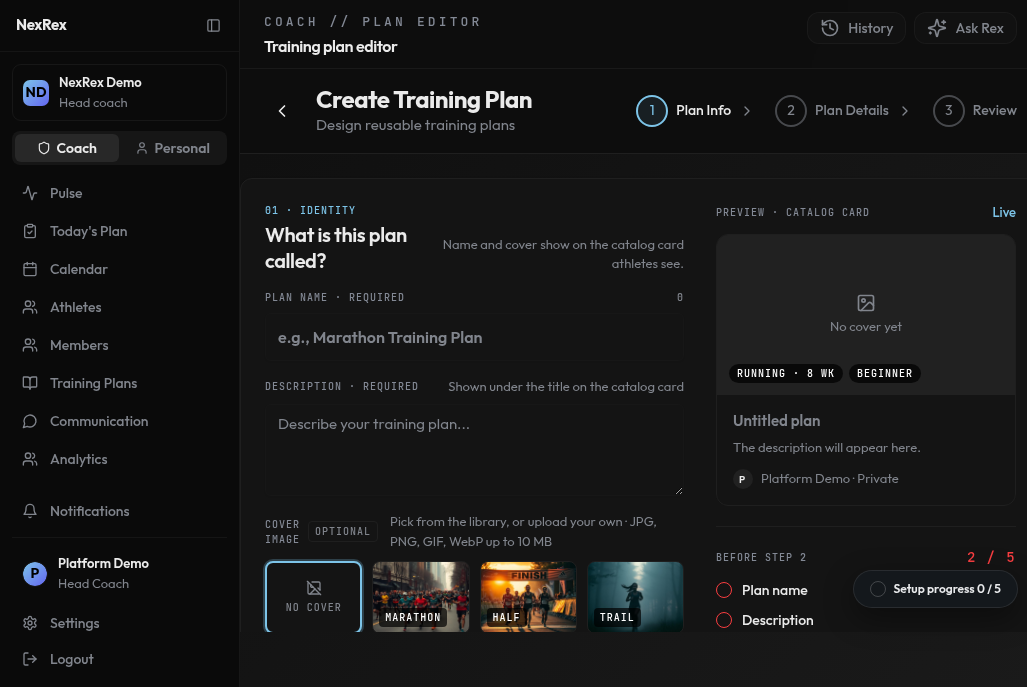 Define the plan's identity and structure:
* **Plan Name** and **Description** — the title and summary athletes see on the plan card.
* **Cover Image** (optional) — upload or paste a URL for the plan thumbnail.
* **Training Type** (Running, Cycling, Swimming, or Strength) and **Difficulty Level** (Beginner, Intermediate, or Advanced) — these drive workout suggestions and filtering.
* **Duration (weeks)** and **Start Date** (optional) — set a start date to display calendar dates instead of generic week numbers.
* **Visibility** — Private (you only), Organization (your coaching org), Public (searchable by anyone), or System (platform template).
* **Plan Type** — Individual or Group. A group plan prompts for one or more sub-groups (name, description, color) that become training cohorts when assigned.
### Step 2: Plan Details
Define the plan's identity and structure:
* **Plan Name** and **Description** — the title and summary athletes see on the plan card.
* **Cover Image** (optional) — upload or paste a URL for the plan thumbnail.
* **Training Type** (Running, Cycling, Swimming, or Strength) and **Difficulty Level** (Beginner, Intermediate, or Advanced) — these drive workout suggestions and filtering.
* **Duration (weeks)** and **Start Date** (optional) — set a start date to display calendar dates instead of generic week numbers.
* **Visibility** — Private (you only), Organization (your coaching org), Public (searchable by anyone), or System (platform template).
* **Plan Type** — Individual or Group. A group plan prompts for one or more sub-groups (name, description, color) that become training cohorts when assigned.
### Step 2: Plan Details
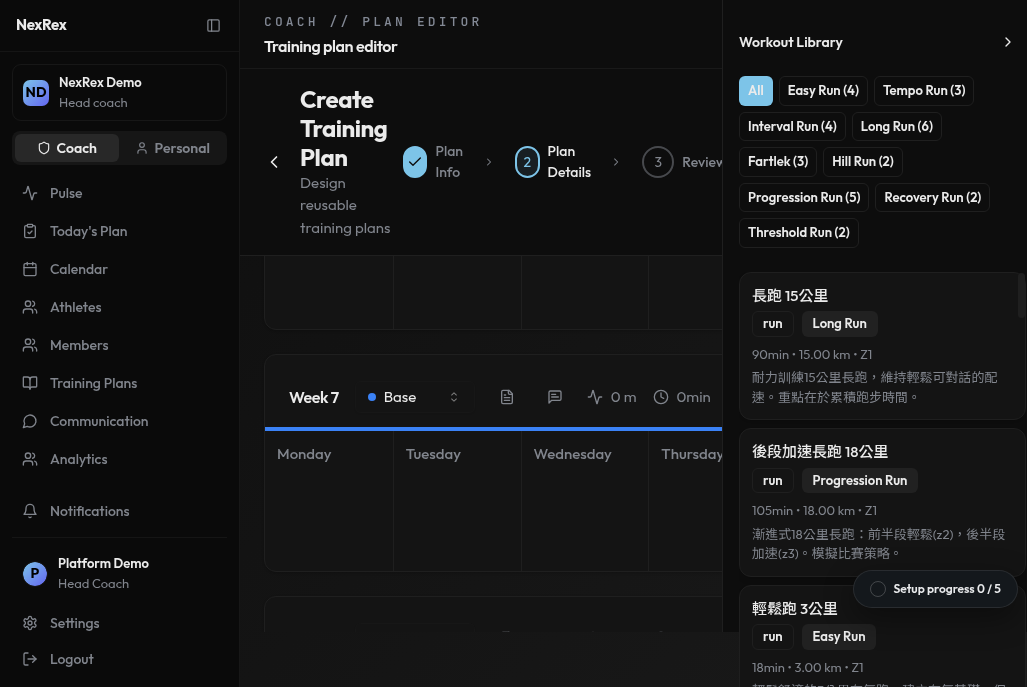 Build your weekly training blocks with a split view: **Workout Library** (left) and **Training Calendar** (right). Drag a workout from your library onto any day to schedule it. Click **Add Week** to extend the plan beyond the initial duration.
Each week includes:
* **Weekly Description** — a markdown field for the week's theme or focus (visible to athletes).
* **Coach Reminders** — internal notes for you and your coaching staff (not visible to athletes).
#### AI shortcuts on Step 2
* **AI Generate** — configure target duration, athlete level, workout-source preference (AI-generated, prefer your library, or library-only), your organization's training principles, and label emphases, then click **Generate Draft**. Review the result and accept or discard it. No conversational refinement — one pass.
* **AI Chat** — hand off to Rex's conversational Plan Builder, carrying your progress as context. See [Draft with Rex in Plan Builder](#draft-with-rex-in-plan-builder) below.
### Step 3: Review
Build your weekly training blocks with a split view: **Workout Library** (left) and **Training Calendar** (right). Drag a workout from your library onto any day to schedule it. Click **Add Week** to extend the plan beyond the initial duration.
Each week includes:
* **Weekly Description** — a markdown field for the week's theme or focus (visible to athletes).
* **Coach Reminders** — internal notes for you and your coaching staff (not visible to athletes).
#### AI shortcuts on Step 2
* **AI Generate** — configure target duration, athlete level, workout-source preference (AI-generated, prefer your library, or library-only), your organization's training principles, and label emphases, then click **Generate Draft**. Review the result and accept or discard it. No conversational refinement — one pass.
* **AI Chat** — hand off to Rex's conversational Plan Builder, carrying your progress as context. See [Draft with Rex in Plan Builder](#draft-with-rex-in-plan-builder) below.
### Step 3: Review
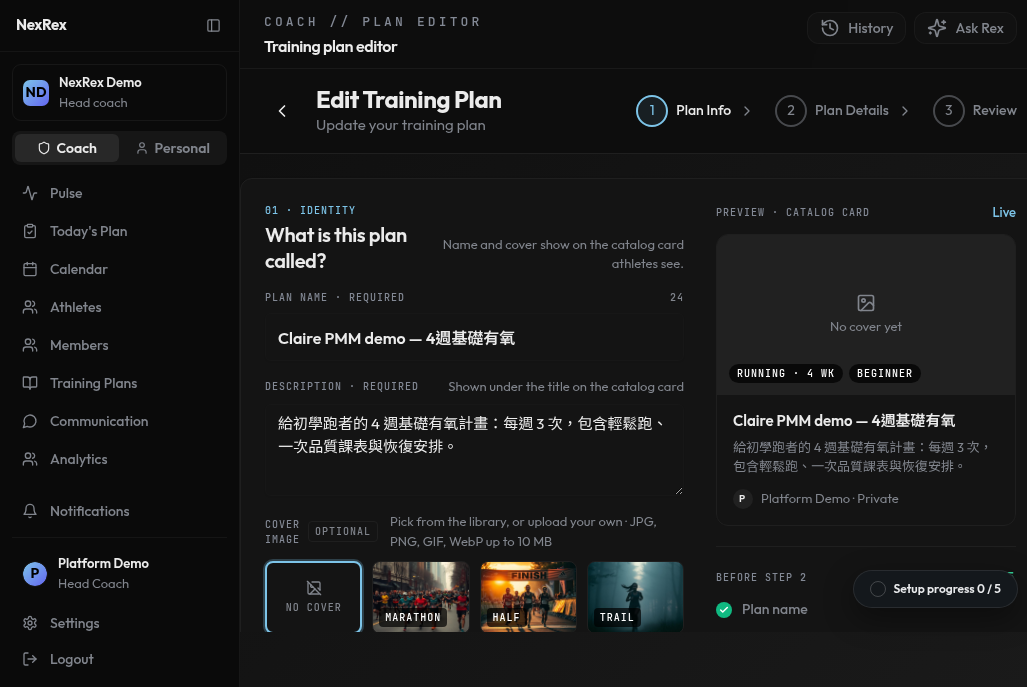 The summary shows **Total Weeks**, **Total Distance**, **Total Duration**, and a **Weekly Training Load** chart. Click **Complete Plan** to save it as a reusable template.
Assign the saved template to an athlete or a group the same way you would any
other template — see [Assign a plan](/coaches/manage-athletes#assign-a-plan)
or [Assign a plan to the group](/coaches/group-plans#assign-a-plan-to-the-group).
## Draft with Rex in Plan Builder
Ask Rex in chat to build a plan for an athlete or a group (see [Draft a plan
for an athlete with Rex](/coaches/manage-athletes#draft-a-plan-for-an-athlete-with-rex)
and [Draft a group plan with Rex](/coaches/group-plans#draft-a-group-plan-with-rex)
for how the hand-off card works), or open Plan Builder directly from
**Training Plans**.
### Intake
Plan Builder starts with three questions: the **goal race**, the athlete's
**finish goal**, and how many days a week they train. Answer them in the chat
on the left — each answer fills a slot on the right (goal race, finish goal,
weekly training days) so you can see what's still pending before Rex
generates anything.
### The plan canvas
Once Rex has enough to work with, it generates a periodized plan and shows it
as a canvas: a week-by-week, day-by-day grid alongside summary stats — total
volume, number of weeks, and peak week. Every session is labeled by type
(Easy, Tempo, Interval, Long run, Cross-train, Rest, Race, Test race).
Refine the plan by telling Rex what to change, in plain language:
* **Move a session** — "move the long run from Saturday to Sunday" relocates
that session on the canvas.
* **Rescale a week** — ask Rex to rescale a week to roughly a target distance;
session distances recompute proportionally across that week.
* **Clear to rest** — turn any session into a rest day.
* **Edit a session** — adjust a specific day's detail directly; Rex confirms
what changed.
* **Attach a note** — attach a note to a session and the athlete sees it on
that session once the plan is assigned.
If a requested change can't be applied, Rex tells you why instead of
silently skipping it.
### Save
The save step depends on who the plan is for:
* **For an athlete** — **Save as template** stores it for later reuse;
**Save & assign** stores it and immediately puts it on the athlete's
calendar.
* **For a group** — **Save as group template** is the only option. Assigning
it to the group is a separate step from the saved banner's **Assign to
group →** link.
The saved banner also links back to the template itself with **Open
template**.
The summary shows **Total Weeks**, **Total Distance**, **Total Duration**, and a **Weekly Training Load** chart. Click **Complete Plan** to save it as a reusable template.
Assign the saved template to an athlete or a group the same way you would any
other template — see [Assign a plan](/coaches/manage-athletes#assign-a-plan)
or [Assign a plan to the group](/coaches/group-plans#assign-a-plan-to-the-group).
## Draft with Rex in Plan Builder
Ask Rex in chat to build a plan for an athlete or a group (see [Draft a plan
for an athlete with Rex](/coaches/manage-athletes#draft-a-plan-for-an-athlete-with-rex)
and [Draft a group plan with Rex](/coaches/group-plans#draft-a-group-plan-with-rex)
for how the hand-off card works), or open Plan Builder directly from
**Training Plans**.
### Intake
Plan Builder starts with three questions: the **goal race**, the athlete's
**finish goal**, and how many days a week they train. Answer them in the chat
on the left — each answer fills a slot on the right (goal race, finish goal,
weekly training days) so you can see what's still pending before Rex
generates anything.
### The plan canvas
Once Rex has enough to work with, it generates a periodized plan and shows it
as a canvas: a week-by-week, day-by-day grid alongside summary stats — total
volume, number of weeks, and peak week. Every session is labeled by type
(Easy, Tempo, Interval, Long run, Cross-train, Rest, Race, Test race).
Refine the plan by telling Rex what to change, in plain language:
* **Move a session** — "move the long run from Saturday to Sunday" relocates
that session on the canvas.
* **Rescale a week** — ask Rex to rescale a week to roughly a target distance;
session distances recompute proportionally across that week.
* **Clear to rest** — turn any session into a rest day.
* **Edit a session** — adjust a specific day's detail directly; Rex confirms
what changed.
* **Attach a note** — attach a note to a session and the athlete sees it on
that session once the plan is assigned.
If a requested change can't be applied, Rex tells you why instead of
silently skipping it.
### Save
The save step depends on who the plan is for:
* **For an athlete** — **Save as template** stores it for later reuse;
**Save & assign** stores it and immediately puts it on the athlete's
calendar.
* **For a group** — **Save as group template** is the only option. Assigning
it to the group is a separate step from the saved banner's **Assign to
group →** link.
The saved banner also links back to the template itself with **Open
template**.